顯示具有 s2ram 標籤的文章。 顯示所有文章

2009年1月4日 星期日

nvidia, KDE4 and openSUSE 11.1

使用 nvidia 顯示卡和 kde 4 會有些效能上的問題
您可以參考 http://userbase.kde.org/GPU-Performance
目前(尤其是) NVIDIA 顯示卡驅動程式和 kwin (KDE4 的視窗管理員)
以及 plasma ( KDE4 的桌面 shell) 都不太能配合
通常您可以使用 compiz 做視窗管理員來避免使用 kwin
plasma 的部份您就逃不掉了
(在此順便一提,請使用 X11:/XGL 的套件庫,升級 compiz, emerald 等到最新套件
就不會有 emerald 視窗裝飾消失的情況發生,
勿使用 X11:/Compiz 套件庫)
上面的連結中提供了一些增進圖形效能的臨時辦法
除了升級到 beta 版的驅動程式外,其他建議似乎效果不顯著
如果您像我一樣有個桌面上的桌面資料夾
寄件者 openSUSE 11.1

請試試看從這桌面資料夾來啟動程式
顯示忙碌的游標跳動大概要等1秒才出現
在這桌料夾拖曳圖示看看,完全會慢半拍
我會關掉這個資料夾,然後在桌面上按右鍵
選擇"桌面設定",將"桌面活化"類型改為"資料夾檢視"
寄件者 openSUSE 11.1

就會變成以前的樣子
寄件者 openSUSE 11.1

(但效能改進有限)
(若要改回原來的樣子,在桌面活化類型選"桌面Desktop without toolbox",確定。
在桌面上按右鍵"新增元件",將"資料夾檢視"拖曳到桌面,
設定該資料夾(扳手圖示)位置為桌面)

根據 http://userbase.kde.org/GPU-Performance 文章的提示
nvidia 不斷的在改進這方面的問題,因此
雖然一般都不建議使用 beta 版本,
我還是決定來試試看...

下載 nvidia 驅動程式
穩定版 for Unix: http://www.nvidia.com.tw/object/unix_tw.html
32 位元的 Linux 作業系統請選 Linux IA32
64 位元的 Linux 作業系統請選 Linux AMD64/EM64T 版本
在 openSUSE 中單鍵安裝或
http://download.nvidia.com/opensuse/{Version} 套件庫安裝的就是這穩定的版本
請參考 http://en.opensuse.org/Nvidia 使用單鍵安裝或加入 NVIDIA 社群套件庫來安裝
(只要在社群套件庫中勾選 NVIDIA 套件庫,11.1 會在您使用 YaST 新增移除套件時,
自動幫您裝上 NVIDIA 的驅動程式)

Beta 版本的 nvidia 驅動程式可由 http://www.nvidia.com.tw/Download/Find.aspx?lang=tw 取得
我是直接由 ftp://download.nvidia.com/XFree86/Linux-x86/180.18/ 取得 180.18 的版本(這是 32 位元版本)
注意:使用 beta 版的驅動程式可能會付出系統不穩定的代價
pkg# 後面的號碼是代表預先編譯的環境(如果我們確定是要自行編譯,應該是沒差的,
您可以選擇檔案較小的)
安裝步驟參考 http://en.opensuse.org/Nvidia#The_hard_way (已經告訴您有點難了喔)
先安裝好 kernel-source gcc make 等套件
# zypper in kernel-source gcc make

看原本裝了哪些 nvidia 驅動程式(您使用的核心和驅動程式可能會不同)
沒錯的話將之刪除
# rpm -qa | grep nvidia
x11-video-nvidiaG02-177.82-1.1
nvidia-gfxG02-kmp-pae-177.82_2.6.27.7_9.1-1.1
# rpm -e `rpm -qa | grep nvidia`
WARNING: /lib/modules/2.6.27.7-9-pae/kernel/sound/i2c/other/snd-tea575x-tuner.ko needs unknown symbol video_exclusive_open
WARNING: /lib/modules/2.6.27.7-9-pae/kernel/sound/i2c/other/snd-tea575x-tuner.ko needs unknown symbol video_exclusive_release
22861 blocks
------------------------------------------------------------------------
Switching the use of "nvidia" driver of NVIDIA to "nv" driver of X.Org
------------------------------------------------------------------------

Patching /etc/X11/xorg.conf ... done

為了避免 NVIDIA 自動安裝,我們要停用 NVIDIA 套件庫
# zypper lr
# | 別名 | 名稱 | 已啟用 | 重新整理
---+-------------------------------+-------------------------------+-----------+---------
1 | Libdvdcss repository | Libdvdcss repository | 是 | 否
2 | Packman Repository | Packman Repository | 是 | 否
3 | X11:XGL | X11:XGL | 是 | 否
4 | openSUSE 11.1-0 | openSUSE 11.1-0 | 否 | 否
5 | repo | NVIDIA Repository | 是 | 否
6 | repo-debug | openSUSE-11.1-Debug | 否 | 否
7 | repo-non-oss | openSUSE-11.1-Non-Oss | 是 | 否
8 | repo-oss | openSUSE-11.1-Oss | 是 | 否
9 | repo-source | openSUSE-11.1-Source | 否 | 否
10 | repo-update | openSUSE-11.1-Update | 是 | 是
11 | swyear | swyear | 是 | 否

Nvidia 套件庫在第5個
# zypper mr -d 5
套件庫 'repo' 已成功停用。

接下來我們要關閉 X,在文字模式下安裝
按 Ctrl-Alt+F1(F1~F6均可)
用 root 登入
# cd {您的NVIDIA-Linux-*.run所在位置}
# init 3 (跑完後按個 Enter才會出現提示符號#)
# sh NVIDIA-Linux-*.run (可用 Tab 自動補滿)

接下來會請您接受授權合約(請用左右鍵將光棒移到 Accept 按 Enter)
No precompiled kernel interface was found to match your kernel; would you like the
installer to attempt to download a kernel interface for your kernel from the NVIDIA ftp site
(ftp://download.nvidia.com)?

因為沒有預先編譯好的核心介面,問您要不要下載?(通常是下載不到的...)回答:Yes 試試看吧
No matching precompiled kernel interface was found in the NVIDIA ftp site; this means
that the installer will need to compile a kernel interface for your kernel.

我就說吧...請回答 OK,讓安裝程式自行編譯核心介面
然後安裝程式會開始編譯核心模組,檢查衝突的檔案,安裝核心模組
Would you like to run the nvidia-xconfig utility to automatically update your configuration
file so that the NVIDIA X driver will be used when you restart X? Any pre-existing X configuration
file will be backed up.

問您要不要自動更新您的 X 設定檔,當然要囉
Your X configuration file has been successfully updated. Installation of NVIDIA Acceleration
Graphics Driver for Linux-x86 (version: 180.18) is now complete.

完成了
openSUSE 使用者要記得下面的命令
# sax2 -r -m 0=nvidia

指定使用 nvidia 驅動程式並調整螢幕大小及解析度
別忘了測試
完成之後
# init 5

會閃現 NVIDIA Beta driver 的 logo,再次進入 X。

根據上面桌面資料夾中啟動程式與拖曳圖示看來,情況真的有改善
魔獸世界也照常玩,但是休眠到記憶體(s2ram)失效了
可以睡著,但是醒不來,會變成重開機(然後修復硬碟...)
您可以換回原本的驅動程式,或者 s2ram 您可以不用的話...
在系統設定->進階->電源管理->編輯設定檔
將出現"暫停並儲存到記憶體"的地方都改掉,例如改成"鎖定螢幕"
寄件者 openSUSE 11.1

尤其筆記型電腦預設蓋子蓋上就會休眠到記憶體
順便一提,剛裝好時螢幕亮度不對,也是在這裡調整。

若要換回原本 NVIDIA 套件庫中的驅動程式:
Ctrl-Alt+F1
以 root 登入
# init 3
# nvidia-installer --uninstall

若您下載的 NVIDIA-Linux-*.run 還在,您也可以
# cd {NVIDIA-Linux-*.run 所在目錄}
# sh NVIDIA-Linux-*.run --uninstall

完成後,重新啟用 NVIDIA 套件庫,安裝驅動程式
# zypper mr -e 5
# yast sw_single

第二個指令會直接呼叫文字介面的 YaST 的軟體管理
11.1 中您只要按 Tab 到 Accept 按 Enter 就可以了
他就會將原有的驅動程式裝上了,最後
# init 5
# shutdown -r now

重新啟動電腦

我決定用 beta 一陣子,這樣我在 YaST 的軟體管理中點選套件時
不至於慢半拍,有不能忍受的缺點時再換回來吧

2009/01/05 更新:
http://techbase.kde.org/User:Lemma/KDE4-NVIDIA 有很多成功的案例
也包含 openSUSE
先測試
$ nvidia-settings -a InitialPixmapPlacement=2 -a GlyphCache=1

大部份 N 卡 8,9 系列的(運氣好的話),都有機會在效能上得到很大的提升
我就是運氣好的那個:)
konsole 的殘像,桌面資料夾的遲緩,YaST 軟體管理的問題都有很大的改善
正如其他人所說的
所感受到的改善是 huge (我現在的感覺也是如此)
您也可以試試看
將下面這個檔案 fix-nv.sh 放在 ~/.kde4/Autostart/
#!/bin/bash
nvidia-settings -a InitialPixmapPlacement=2 -a GlyphCache=1 &

記得賦與此檔案執行權限
$ chmod +x fix-nv.sh

我又回到正式版的 nvidia 驅動程式了

2008年10月27日 星期一

s2ram

上次跟大家報告,說這台 asus f6s 無法休眠到記憶體
請容我更正一下,當然,是要費些手腳的(但是很簡單)
先說明一下:
原本由 KDE 選單中選擇『暫停寫入到 RAM』(Suspend to RAM)
系統沒有反應
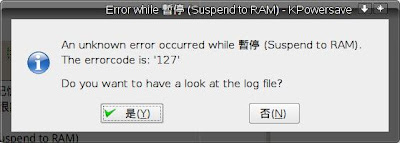
而按下休眠快速鍵 Fn+ZZ
則會出現螢幕保護鎖定,輸入密碼解鎖後,則出現
寄件者 openSUSE 11.0 GM

察看紀錄:
Mon Oct 27 19:25:49 CST 2008: running suspend hooks.
===== Mon Oct 27 19:25:49 CST 2008: running hook: /usr/lib/pm-utils/sleep.d/00clear =====
===== Mon Oct 27 19:25:49 CST 2008: running hook: /usr/lib/pm-utils/sleep.d/01logging =====
suspend initiated: Mon Oct 27 19:25:49 CST 2008

Module Size Used by
ip6t_LOG 23940 7
xt_tcpudp 20480 2
xt_pkttype 18944 3
xt_physdev 19728 2
ipt_LOG 23428 8
xt_limit 20356 15
af_packet 42624 4
snd_pcm_oss 68992 0
snd_mixer_oss 35584 1 snd_pcm_oss
snd_seq 83600 0
snd_seq_device 26516 1 snd_seq
binfmt_misc 30220 1
bridge 81192 1
bnep 35200 2
ip6t_REJECT 22272 3
nf_conntrack_ipv6 36424 4
ipt_REJECT 21120 3
xt_state 19712 8
iptable_mangle 20608 0
iptable_nat 24976 0
nf_nat 39576 1 iptable_nat
iptable_filter 20736 1
ip6table_mangle 20480 0
nf_conntrack_netbios_ns 19968 0
usbhid 65488 0
nf_conntrack_ipv4 29576 7 iptable_nat,nf_nat
hid 59296 1 usbhid
nf_conntrack 91536 6 nf_conntrack_ipv6,xt_state,iptable_nat,nf_nat,nf_conntrack_netbios_ns,nf_conntrack_ipv4
ff_memless 23176 1 usbhid
ip_tables 39056 3 iptable_mangle,iptable_nat,iptable_filter
cpufreq_conservative 26248 0
cpufreq_userspace 23556 0
cpufreq_powersave 18816 0
acpi_cpufreq 27536 1
ip6table_filter 20608 1
ip6_tables 40720 3 ip6t_LOG,ip6table_mangle,ip6table_filter
x_tables 43144 12 ip6t_LOG,xt_tcpudp,xt_pkttype,xt_physdev,ipt_LOG,xt_limit,ip6t_REJECT,ipt_REJECT,xt_state,iptable_nat,ip_tables,ip6_tables
ipv6 331544 19 ip6t_REJECT,nf_conntrack_ipv6,ip6table_mangle
microcode 32808 0
fuse 72384 5
loop 37508 0
dm_mod 88600 0
rfcomm 63392 4
l2cap 44160 12 bnep,rfcomm
arc4 19072 2
ecb 20992 2
crypto_blkcipher 38916 1 ecb
snd_hda_intel 497580 1
hci_usb 34716 0
iwl3945 116196 0
btusb 25496 2
uvcvideo 76040 0
firmware_class 27776 2 microcode,iwl3945
snd_pcm 115208 2 snd_pcm_oss,snd_hda_intel
rtc_cmos 28728 0
compat_ioctl32 25984 1 uvcvideo
sr_mod 35764 0
iTCO_wdt 30800 0
snd_timer 45072 2 snd_seq,snd_pcm
videodev 52096 2 uvcvideo,compat_ioctl32
mac80211 220568 1 iwl3945
usb_storage 112928 0
rtc_core 41012 1 rtc_cmos
rtc_lib 20224 1 rtc_core
bluetooth 82340 9 bnep,rfcomm,l2cap,hci_usb,btusb
video 43156 11
joydev 30848 0
snd_page_alloc 28688 2 snd_hda_intel,snd_pcm
cdrom 53416 1 sr_mod
sg 56912 0
v4l1_compat 29444 2 uvcvideo,videodev
iTCO_vendor_support 21124 1 iTCO_wdt
serio_raw 24708 0
cfg80211 39568 1 mac80211
output 21248 1 video
asus_laptop 38492 0
battery 33672 0
nvidia 8165472 40
snd_hwdep 28424 1 snd_hda_intel
ac 24328 0
r8169 51332 0
button 27040 0
snd 96248 10 snd_pcm_oss,snd_mixer_oss,snd_seq,snd_seq_device,snd_hda_intel,snd_pcm,snd_timer,snd_hwdep
led_class 22920 1 asus_laptop
soundcore 26000 1 snd
i2c_core 45344 1 nvidia
sd_mod 47280 6
ehci_hcd 56204 0
uhci_hcd 43936 0
usbcore 188376 8 usbhid,hci_usb,btusb,uvcvideo,usb_storage,ehci_hcd,uhci_hcd
edd 28176 0
ext3 170896 2
mbcache 27396 1 ext3
jbd 82368 1 ext3
fan 23944 0
ata_piix 43396 0
ahci 51080 5
libata 195232 2 ata_piix,ahci
scsi_mod 195032 5 sr_mod,usb_storage,sg,sd_mod,libata
dock 29344 1 libata
thermal 44448 0
processor 72920 4 acpi_cpufreq,thermal

total used free shared buffers cached
Mem: 3095064 726312 2368752 0 27660 336628
-/+ buffers/cache: 362024 2733040
Swap: 2097544 0 2097544

===== Mon Oct 27 19:25:49 CST 2008: running hook: /usr/lib/pm-utils/sleep.d/05led =====
===== Mon Oct 27 19:25:49 CST 2008: running hook: /usr/lib/pm-utils/sleep.d/06autofs =====
===== Mon Oct 27 19:25:49 CST 2008: running hook: /usr/lib/pm-utils/sleep.d/10NetworkManager =====
===== Mon Oct 27 19:25:49 CST 2008: running hook: /usr/lib/pm-utils/sleep.d/20reset-bluetooth =====
===== Mon Oct 27 19:25:49 CST 2008: running hook: /usr/lib/pm-utils/sleep.d/30s2disk-check =====
===== Mon Oct 27 19:25:49 CST 2008: running hook: /usr/lib/pm-utils/sleep.d/45pcmcia =====
ejecting PCMCIA cards...
===== Mon Oct 27 19:25:49 CST 2008: running hook: /usr/lib/pm-utils/sleep.d/50modules =====
===== Mon Oct 27 19:25:49 CST 2008: running hook: /usr/lib/pm-utils/sleep.d/55battery =====
===== Mon Oct 27 19:25:49 CST 2008: running hook: /usr/lib/pm-utils/sleep.d/80acpi-fan =====
===== Mon Oct 27 19:25:49 CST 2008: running hook: /usr/lib/pm-utils/sleep.d/80videobios =====
===== Mon Oct 27 19:25:49 CST 2008: running hook: /usr/lib/pm-utils/sleep.d/94cpufreq =====
===== Mon Oct 27 19:25:49 CST 2008: running hook: /usr/lib/pm-utils/sleep.d/95led =====
===== Mon Oct 27 19:25:49 CST 2008: running hook: /usr/lib/pm-utils/sleep.d/99Zgrub =====
===== Mon Oct 27 19:25:49 CST 2008: running hook: /usr/lib/pm-utils/sleep.d/99info =====
Mon Oct 27 19:25:49 CST 2008: done running suspend hooks.
+ /usr/sbin/s2ram
Machine is unknown.
This machine can be identified by:
sys_vendor = "ASUSTeK Computer Inc. "
sys_product = "F6S "
sys_version = "1.0 "
bios_version = "304 "
See http://en.opensuse.org/S2ram for details.

If you report a problem, please include the complete output above.
If you report success, please make sure you tested it from both X and
the text console and preferably without proprietary drivers.
+ RET=127
+ set +x
Mon Oct 27 19:25:50 CST 2008: running resume hooks.
===== Mon Oct 27 19:25:50 CST 2008: running hook: /usr/lib/pm-utils/sleep.d/99info =====
===== Mon Oct 27 19:25:50 CST 2008: running hook: /usr/lib/pm-utils/sleep.d/99Zgrub =====
===== Mon Oct 27 19:25:50 CST 2008: running hook: /usr/lib/pm-utils/sleep.d/95led =====
===== Mon Oct 27 19:25:50 CST 2008: running hook: /usr/lib/pm-utils/sleep.d/94cpufreq =====
===== Mon Oct 27 19:25:50 CST 2008: running hook: /usr/lib/pm-utils/sleep.d/80videobios =====
===== Mon Oct 27 19:25:50 CST 2008: running hook: /usr/lib/pm-utils/sleep.d/80acpi-fan =====
===== Mon Oct 27 19:25:50 CST 2008: running hook: /usr/lib/pm-utils/sleep.d/55battery =====
method return sender=:1.1 -> dest=:1.254 reply_serial=2
boolean false
===== Mon Oct 27 19:25:50 CST 2008: running hook: /usr/lib/pm-utils/sleep.d/50modules =====
===== Mon Oct 27 19:25:50 CST 2008: running hook: /usr/lib/pm-utils/sleep.d/45pcmcia =====
inserting PCMCIA cards...
===== Mon Oct 27 19:25:50 CST 2008: running hook: /usr/lib/pm-utils/sleep.d/30s2disk-check =====
===== Mon Oct 27 19:25:50 CST 2008: running hook: /usr/lib/pm-utils/sleep.d/20reset-bluetooth =====
===== Mon Oct 27 19:25:50 CST 2008: running hook: /usr/lib/pm-utils/sleep.d/10NetworkManager =====
===== Mon Oct 27 19:25:50 CST 2008: running hook: /usr/lib/pm-utils/sleep.d/06autofs =====
===== Mon Oct 27 19:25:50 CST 2008: running hook: /usr/lib/pm-utils/sleep.d/05led =====
===== Mon Oct 27 19:25:50 CST 2008: running hook: /usr/lib/pm-utils/sleep.d/01logging =====
===== Mon Oct 27 19:25:50 CST 2008: running hook: /usr/lib/pm-utils/sleep.d/00clear =====
Mon Oct 27 19:25:50 CST 2008: done running resume hooks.

裏面看得懂的就是要你到
http://en.opensuse.org/S2ram 看看
果然看了就得到解答了
其實有時只是您的機器沒有列入白名單中,說不支援倒是未必
# s2ram
Machine is unknown.
This machine can be identified by:
sys_vendor = "ASUSTeK Computer Inc. "
sys_product = "F6S "
sys_version = "1.0 "
bios_version = "304 "
See http://en.opensuse.org/S2ram for details.

If you report a problem, please include the complete output above.
If you report success, please make sure you tested it from both X and
the text console and preferably without proprietary drivers.

重點就是 Machine is unknown,意思就是不在白名單中
您還是可以強迫他進行 suspend to ram
以下說明都是從 http://en.opensuse.org/S2ram 抄過來的
您可以先試試 s2ram -f 強迫執行(我很好運的就 OK 了)
(根據下面的說明 nvidia 顯示卡晶片大部份用這個就可以了)
若不行,請一個一個試試以下指令
s2ram -f -a 3
s2ram -f -a 2
s2ram -f -a 1
s2ram -f -p -m
s2ram -f -p -s
s2ram -f -m
s2ram -f -s
s2ram -f -p
s2ram -f -a 1 -m
s2ram -f -a 1 -s

若都不行,再加個 -v 重試一次
請確認在 X 環境中,與 Console 環境中(用 Ctrl+Alt+F1 登入測試)都無誤
通常 intel 顯示卡可以用
s2ram -f -a 3 或 s2ram -f -p -m
ATI
Radeon 顯卡要在 kernel 傳入 vga=0 的參數,用 s2ram -f -p -m 或 s2ram -f -p -s
Nvidia 用
s2ram -f 並參考 NVidia Suspend HOWTO(我照做後發現似乎沒什不同)
詳細內容請參考原文喔
找到適合參數後
編輯一文字檔,例如 force_s2ram 內容為
S2RAM_OPTS="-f"

(當然要依照您測試的結果來寫,例如 s2ram -f -a 3 可成功,則應為
S2RAM_OPTS="-f -a 3" )
將此文字檔放在 /etc/pm/config.d/ 中
# cp force_s2ram /etc/pm/config.d/

這樣就完成了
用 KDE 選單的『暫停寫入到 RAM』或快速鍵 Fn+ZZ
就會在5秒內進入休眠,剩下一個燈泡形狀的指示燈慢慢閃爍
隨便按一個鍵,又會在5秒內回復成原來的工作
爽度蠻高的呢!

最後一件事
別忘了寫信到 suspend-devel@lists.sourceforge.net
說明您如何讓您的機器順利運作
並附上 s2ram -n
還有說謝謝

最後還是引用 http://en.opensuse.org/S2ram 的最後一句話來結束本文
"別放棄!"